Z-Image Turbo prompt guide: settings, text rendering and examples
Write Z-Image Turbo prompts as concrete descriptions: the subject first, then setting, composition, lighting and medium, with any words you want rendered inside double quotes. The developer runs it at 8 steps with guidance 0, and Turbo has no negative prompt, so describe what should be in the frame instead.
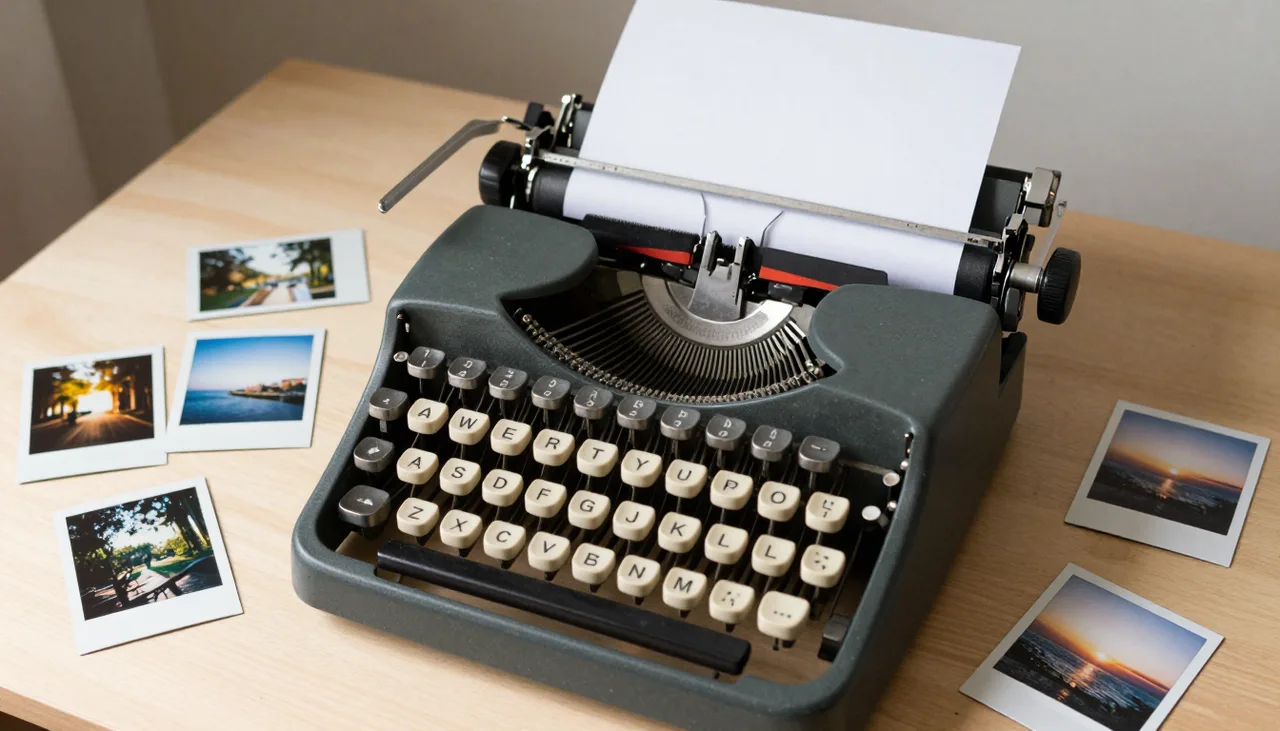
How the developer prompts it
Tongyi-MAI, the Alibaba team behind Z-Image, doesn't publish a standalone prompting guide for Turbo. Three official sources show what the model expects: the model card, the official demo Space, and the prompt-enhancer template that ships with that demo (pe.py).
- Language. The card lists bilingual text rendering, English and Chinese, as a strength, and the demo's example prompts are written in both. Prompt in whichever you need, and in Chinese when the image itself should contain Chinese characters.
- Style of prompt. The card's example prompt is a run of short, concrete visual phrases: "Young Chinese woman in red Hanfu, intricate embroidery. Impeccable makeup, red floral forehead pattern. Elaborate high bun..." It goes on through the headdress, a fan, a lamp, the lighting and the background. No quality tags, no artist names.
- Length. There's no stated length rule. The repo's inference config and the demo both set a maximum sequence length of 512 tokens for the text encoder, which caps how much of a prompt is encoded. A detailed paragraph fits comfortably.
What the prompt enhancer does
The enhancer is a system prompt (written in Chinese) that tells an LLM to rewrite a short user prompt into a full visual description before it reaches the image model. The card describes it as giving the model reasoning ability beyond surface-level descriptions. Its rules are the closest thing to an official prompt style:
- Keep the user's core elements exactly: subject, count, action, state, named IPs, colours and any text.
- If the request asks for a design or an answer ("design a logo", "solve this"), work out a concrete, drawable plan first, then describe that plan.
- Then add composition, lighting and atmosphere, material textures, colour scheme and spatial layering.
- Copy any text to render word for word and wrap it in English double quotes. For posters, menus and UI, describe all of the text plus its font and layout; for signs and screens, its content, position, size and material.
- Write objective, concrete description: no metaphors, no emotional language, and no meta tags such as "8K" or "masterpiece".
- Output only the final rewritten prompt.
In the current demo Space the enhancer is switched off by default, so the demo renders your prompt as typed. If you want its effect, you can run the same instructions through an LLM of your own and send the rewritten prompt. Or just write your prompt the way the template would.
A prompt structure that works
Putting the developer's template together with practical advice from the Windpaint prompting docs gives an order that holds up across most images:
- Subject. What the image is of, with the specifics that matter: "a woman in her sixties with short grey hair, wearing a yellow raincoat", not "a woman". Counts, colours and materials go here.
- Action and state. What the subject is doing, how it's posed, what it holds.
- Setting. Where it is, what's behind it.
- Composition. Framing, camera height, lens feel: "close-up", "low angle", "centred with empty space on the right".
- Lighting. One of the biggest levers: "soft window light from the left", "overcast daylight", "neon reflecting on wet pavement".
- Medium and style. "Studio product photo", "35mm film photo", "watercolour illustration", "flat vector". Leave it out and the model picks one.
- Text. Any words to render, in double quotes, with position and lettering style.
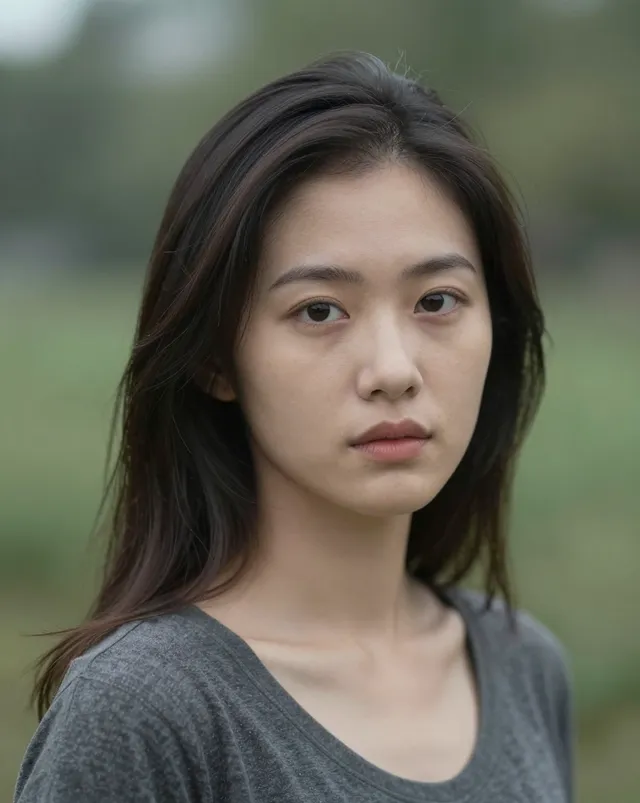
A woman
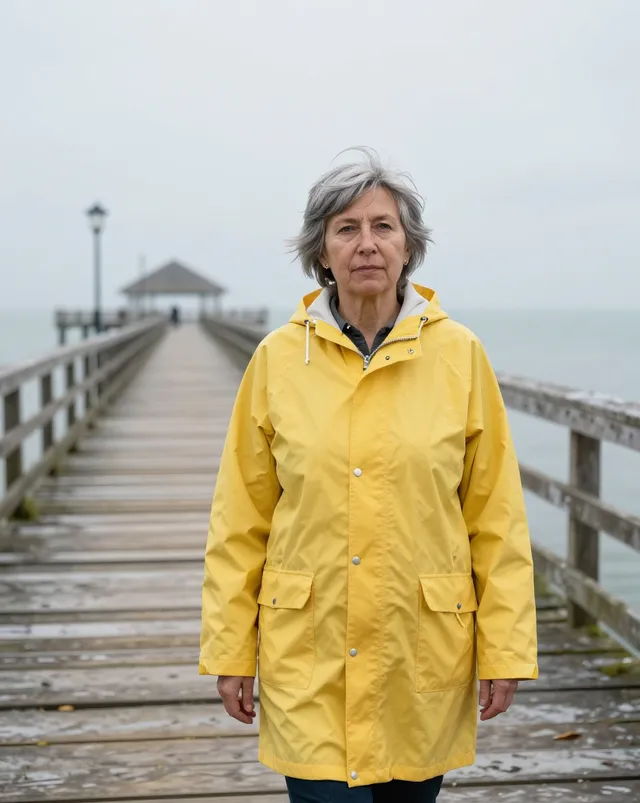
A woman in her sixties with short grey hair, wearing a yellow raincoat, standing on a windy pier, overcast light, 50mm photo
A woman in her sixties with short grey hair and a yellow raincoat, holding afolded paper map, standing at a ferry railing. Grey sea and a distant harbourbehind her. Medium shot from slightly below, subject on the left third.Overcast daylight, soft shadows. 35mm film photo, muted colours, fine grain.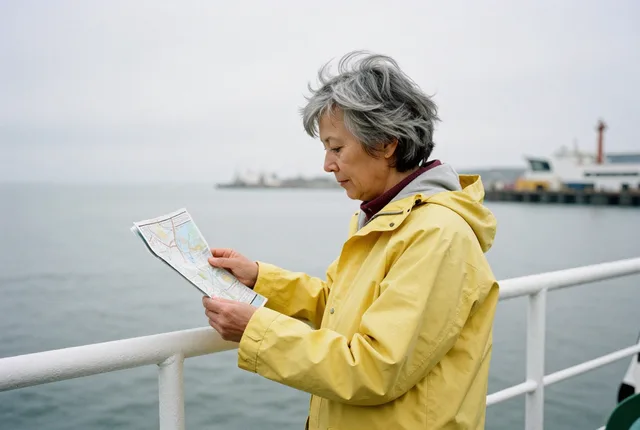
A woman in her sixties with short grey hair and a yellow raincoat, holding a folded paper map, standing at a ferry railing. Grey sea and a…
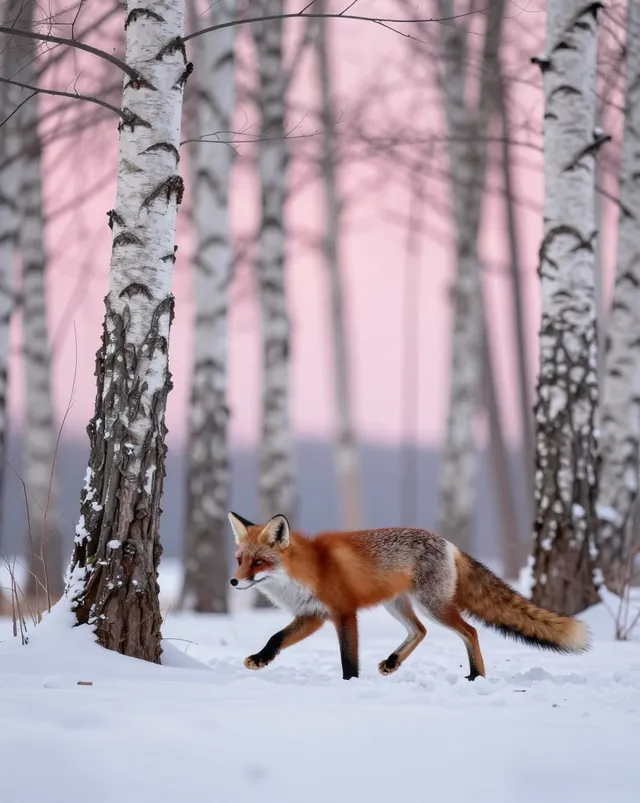
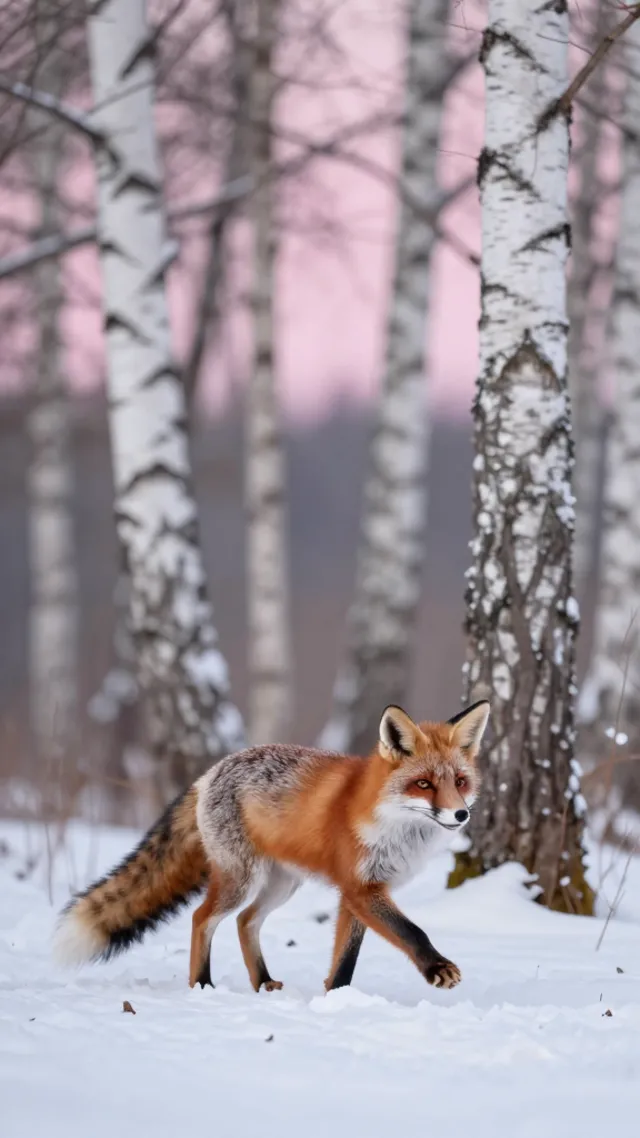
Keep each prompt to one scene. Two unrelated ideas in one prompt tend to blend; make two images instead. And pick the composition with the aspect ratio rather than describing it: a wide landscape reads better at 16:9 or 21:9 than at 1:1 with "wide shot" in the prompt.
Text rendering in Z-Image Turbo
The card says Turbo renders complex Chinese and English text accurately, and text is where the prompt-enhancer rules are strictest. Follow them directly:
- Put every string inside English double quotes, exactly as it should appear:
a shop sign that reads "OPEN LATE". - Say where each string goes and how big it is: "large letters across the top", "small text along the bottom edge".
- Describe the lettering: "bold white sans-serif", "hand-painted serif", "neon tube script". For signs, add the material: "carved into wood", "printed on enamel".
- For posters and menus, list all of the text, one quoted string per element, rather than "some text about a concert".
- Keep strings short. Short text works better than long text, and letters can still come out wrong, so check each render and try another seed before you rewrite.
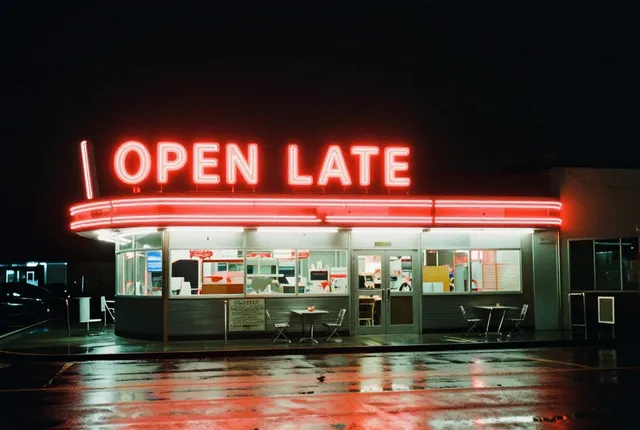
A vintage diner at night with a red neon sign that reads "OPEN LATE", wet street reflections, 35mm photo
A minimalist jazz concert poster. Across the top, large bold white sans-serifletters read "BLUE HOUR". Along the bottom edge, smaller white text reads"FRIDAY 9PM". In the centre, a saxophone silhouette in deep blue on a warmorange gradient background. Flat screen-print style, wide margins.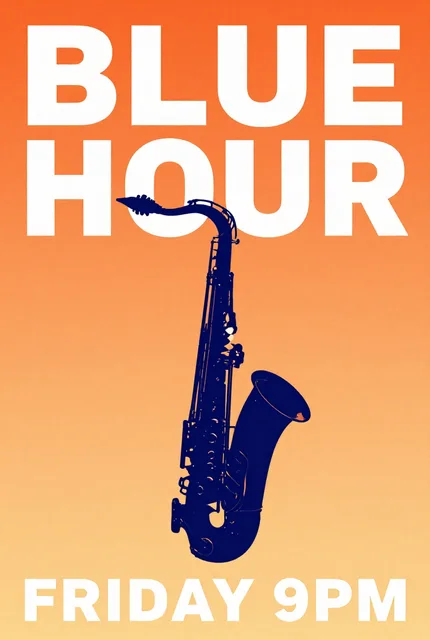
A minimalist jazz concert poster. Across the top, large bold white sans-serif letters read "BLUE HOUR". Along the bottom edge, smaller…
Z-Image Turbo negative prompt: there isn't one
The comparison table on the Z-Image card marks Turbo with no CFG and no negative prompting. Its own card says guidance should be 0 for the Turbo models, and a negative prompt needs classifier-free guidance to do anything. If you need negative prompts, that's the undistilled Z-Image base, covered below.
Writing the negative into the main prompt doesn't work either. "No people" puts the word people in the prompt and can make people more likely. Describe the scene you want: "an empty street at dawn", "a plain light grey background", "bare wooden table". The same goes for quality tags: the developer's enhancer template drops "8K" and "masterpiece" and spends those words on concrete detail.
Recommended settings: steps, guidance and scheduler
Turbo is distilled to a fixed, small number of steps. These are the developer's own values, for running the weights yourself:
| Setting | Value | Where it's stated |
|---|---|---|
| Steps | 8 DiT forward passes. In Diffusers, num_inference_steps=9 gives 8 forwards. | Card example comment |
| Guidance scale | 0.0. "Guidance should be 0 for the Turbo models." | |
| Resolution | 1024 × 1024 default | |
| Scheduler | FlowMatchEulerDiscreteScheduler, time shift 3.0 | |
| Max sequence length | 512 | |
| Precision | bfloat16; CPU offload shown for low-memory devices |
The demo shows a steps slider but locks it at 8. The developer doesn't recommend more steps or a higher guidance value for Turbo, so if you're carrying habits over from older diffusion models, leave both alone and work on the prompt instead. The card says Turbo fits within 16 GB of VRAM on consumer devices; hardware requirements has the figures for every model in the catalogue.
Aspect ratios and resolutions
The official demo groups its sizes into three categories, 1024, 1280 and 1536, each with eleven aspect ratios. Two of the three, for the common ratios:
| Aspect ratio | 1024 category | 1536 category |
|---|---|---|
| 1:1 | 1024 × 1024 | 1536 × 1536 |
| 4:3 / 3:4 | 1152 × 864 / 864 × 1152 | 1728 × 1296 / 1296 × 1728 |
| 3:2 / 2:3 | 1248 × 832 / 832 × 1248 | 1872 × 1248 / 1248 × 1872 |
| 16:9 / 9:16 | 1280 × 720 / 720 × 1280 | 2048 × 1152 / 1152 × 2048 |
| 21:9 / 9:21 | 1344 × 576 / 576 × 1344 | 2016 × 864 / 864 × 2016 |
Note that these keep roughly the same pixel area per category rather than a fixed long edge, so a 16:9 image in the 1024 category is 1280 px wide. The middle category (1280 × 1280 and so on) and the 9:7 and 7:9 ratios are in the same file.
A seed is tied to the output size. Change the ratio or the size and the same seed gives a related but different picture, because the model starts from noise the size of the output. Find the prompt at a small size, then expect to try a few seeds at the final size.
Z-Image Turbo vs Z-Image base
Both are 6B models from the same family. The Z-Image card compares them directly:
| Z-Image (base) | Z-Image Turbo | |
|---|---|---|
| CFG | Yes | No |
| Steps | 28 to 50 | 8 |
| Negative prompts | Yes | No |
| Fine-tunability | Yes | No |
| Output diversity | High | Low |
| Visual quality | High | Very high |
| RL stage | No | Yes |
The base model's card recommends guidance 3.0 to 5.0, 28 to 50 steps, and 512 × 512 to 2048 × 2048 in total pixel area at any aspect ratio. Its repo marks negative prompts as strongly recommended. Choose Turbo when you want finished images in few steps from a plain prompt; choose base when you need negative prompts, more variety between seeds, or a model to fine-tune. The Z-Image page has the base model's details.
Z-Image Turbo image-to-image and Z-Image Edit
Z-Image Turbo is a text-to-image model. The Z-Image repo lists Turbo's task as generation only and assigns editing to two other checkpoints in the family: Z-Image-Edit and Z-Image-Omni-Base. As of November 2026 both are listed in the repo's model zoo with weights "to be released", with no date and no Hugging Face repo yet.
So there is no official image-to-image or edit mode for Turbo. Community workflows that feed an input image through Turbo at partial denoise work the way img2img works with any diffusion model, but the developer doesn't document or tune for it. For editing today, the open options are Qwen-Image-Edit-2511 or the multi-reference editing built into FLUX.2 klein.
When Z-Image Edit weights land, we'll cover its prompting here. Until then, treat any "Z-Image Edit" download that isn't from the Tongyi-MAI organisation as unofficial.
Z-Image Turbo in ComfyUI
ComfyUI supports the Z-Image family natively and keeps an official Z-Image tutorial with a ready-made workflow template. The settings in this guide carry over directly: 8 steps, CFG 1 in ComfyUI terms (no guidance), and no negative prompt for Turbo. If a workflow you downloaded has a negative prompt node wired in, it has no effect on Turbo's output at CFG 1.
The base Z-Image model is the one to use in ComfyUI when you want CFG, a negative prompt, or a checkpoint to train LoRAs on. Swap the model, raise steps to 28 to 50 and set CFG to 3 to 5, per the base card.
Common failure modes
| Problem | Likely cause | What to try |
|---|---|---|
| Different seeds look alike | The card rates Turbo's output diversity low | Change the wording, framing or lighting instead of only the seed. Use base for wide exploration. |
| Something you excluded appears | A negative written into the prompt | Describe the scene without it: "an empty beach", not "a beach, no people". |
| Misspelt or garbled text | Long strings, or text not quoted | Quote each string, shorten it, give its position and lettering, try other seeds. |
| Two ideas merged into one odd image | Several scenes in one prompt | One scene per prompt; make separate images. |
| Unexpected style | No medium named | Say "studio photo", "watercolour", "flat vector" and so on. |
| Same seed, different image | Size or aspect ratio changed | Keep size fixed while you iterate on wording. |
| Generic, flat result | Short prompt full of tags like "8K, best quality" | Replace tags with concrete detail: materials, light direction, lens, background. |
Z-Image Turbo example prompts by use
Each prompt follows the structure above. The settings column gives a Windpaint tier and ratio and the nearest size in the developer's demo.
| Use | Prompt | Settings |
|---|---|---|
| Product shot | A frosted glass bottle of hand cream with a brushed aluminium cap, standing on a wet slate tile, a few water droplets on the glass. Studio product photo, soft light from the upper left, pale sage green background, shallow depth of field. | 1k, 1:1 (1024 × 1024) |
| Portrait | Head-and-shoulders portrait of a man in his seventies with a white beard and a navy wool flat cap, looking just past the camera. Overcast window light from the right, plain warm brown background. Editorial photo, 85mm lens, shallow depth of field. | 1k, 4:5 (816 × 1024) |
| Illustration | Flat vector illustration of a lighthouse on a rocky island at night, its beam crossing a starry sky. Limited palette of navy, teal and warm yellow, clean geometric shapes defined by colour alone. | 1k, 4:3 (1024 × 768) |
| Poster with text | A minimalist jazz concert poster. Across the top, large bold white sans-serif letters read "BLUE HOUR". Along the bottom edge, smaller white text reads "FRIDAY 9PM". A deep blue saxophone silhouette on a warm orange gradient. Flat screen-print style. | 1k, 2:3 (688 × 1024) |
| Chinese text | A wooden sign above the door of an old tea house, the Chinese characters "茶馆" carved and painted gold. Red lanterns on each side, dusk light, light rain on the stone step. Photo. | 1k, 3:2 (1024 × 688) |
| Food overhead | Overhead photo of a bowl of ramen on a dark wooden table: sliced pork, a halved soft-boiled egg, spring onions, nori. Chopsticks resting on the rim. Soft daylight from the top left. | 1k, 4:5 (816 × 1024) |
| Start frame for video | A paper boat floating on a rain-soaked city street at dusk, puddles reflecting warm shop lights, low camera angle. Cinematic photo. | 1k, 16:9 (1024 × 576) |
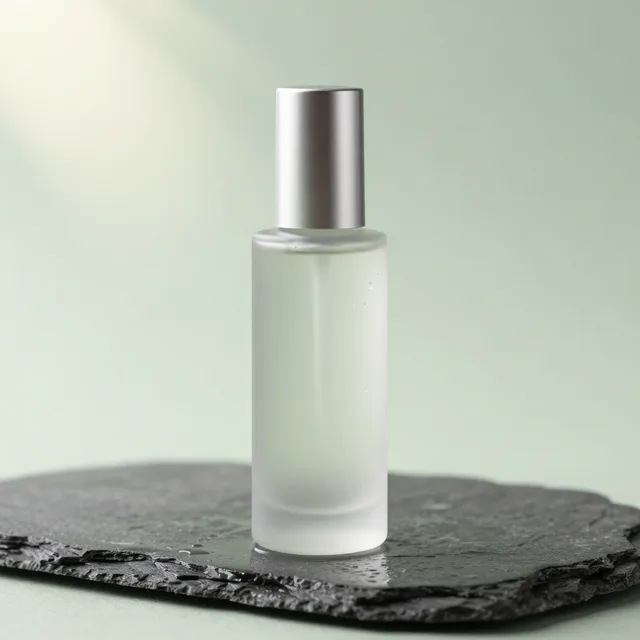
A frosted glass bottle of hand cream with a brushed aluminium cap, standing on a wet slate tile, a few water droplets on the glass. Studio…
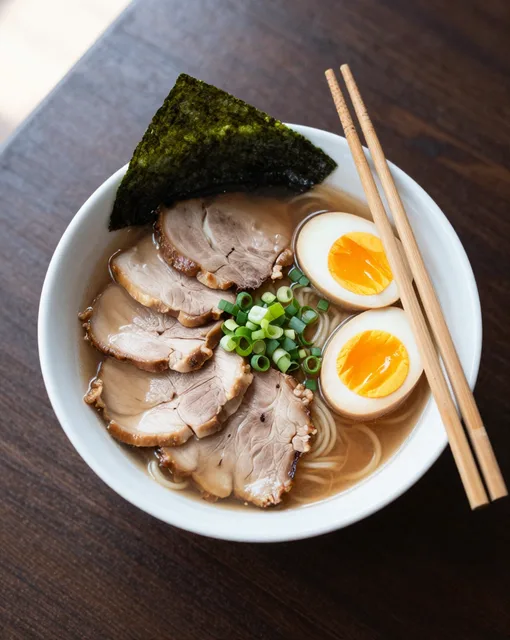
Overhead photo of a bowl of ramen on a dark wooden table: sliced pork, a halved soft-boiled egg, spring onions, nori. Chopsticks resting on…
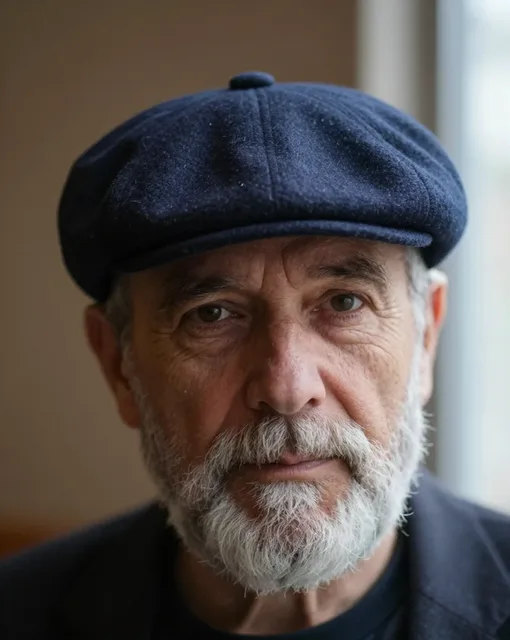
Head-and-shoulders portrait of a man in his seventies with a white beard and a navy wool flat cap, looking just past the camera. Overcast…
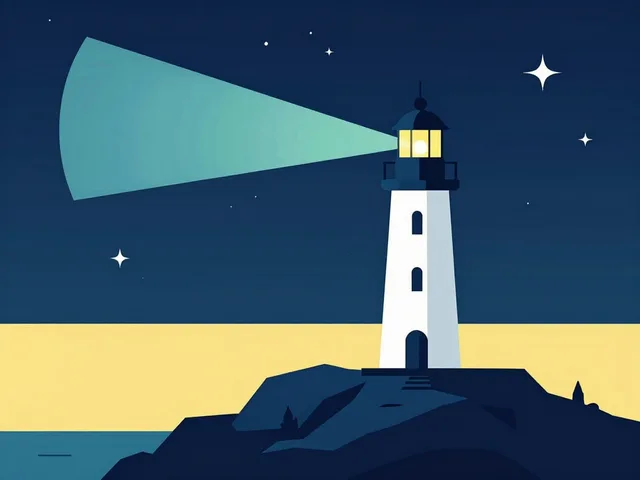
Flat vector illustration of a lighthouse on a rocky island at night, its beam crossing a starry sky. Limited palette of navy, teal and warm…
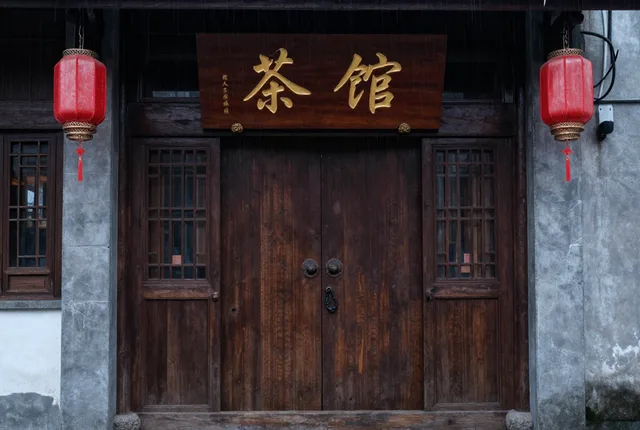
A wooden sign above the door of an old tea house, the Chinese characters "茶馆" carved and painted gold. Red lanterns on each side, dusk…
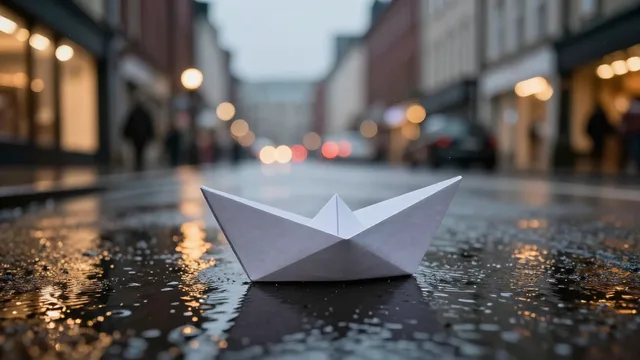
A paper boat floating on a rain-soaked city street at dusk, puddles reflecting warm shop lights, low camera angle. Cinematic photo.
The last row is meant to be animated. Image-to-video prompting is its own skill: the frame fixes what's in the shot, so the video prompt describes camera and subject motion instead of the scene. The Wan 2.2 image-to-video page covers that model's prompting; video on Windpaint is coming soon.
Running these prompts through the Windpaint API
Windpaint serves Z-Image Turbo as z-image-turbo behind image.generate. You send a prompt, the 1k tier (a 1024 px long edge), one of ten aspect ratios and an optional seed; steps and guidance aren't exposed. The prompt goes to the model as written, with no rewriting and no negative prompt field. Images usually finish within seconds, so Prefer: wait returns the finished job in the submit response:
curl -X POST https://api.windpaint.ai/v1/generation/capabilities/image.generate \ -H "Authorization: Bearer $WINDPAINT_API_KEY" \ -H "Content-Type: application/json" \ -H "Prefer: wait=30" \ -d '{ "model": "z-image-turbo", "prompt": "A minimalist jazz concert poster. Across the top, large bold white sans-serif letters read \"BLUE HOUR\". A deep blue saxophone silhouette on a warm orange gradient. Flat screen-print style.", "resolution": "1k", "aspect_ratio": "2:3", "seed": 7 }'If the job finished in time you get 200 with the full status, and outputs[0] holds the image's asset id, url, width and height. If not, you get 202 with a request_id to poll. Send a seed whenever you might want the image again: the API doesn't report the seed it picked. num_outputs gives up to four images in one job, billed per image.
For a ready-made style, add a preset such as "preset": "product-shot" and send only the subject; the preset wraps it in a published template. The model page lists all seven, from product shot and cinematic still to anime key art and overhead food. A 1k image costs 0.08 credits ($0.004); see pricing. The images docs have the full parameter list and pixel sizes.
Sources
Questions.
How many steps does Z-Image Turbo need?
Eight. The model card's example sets num_inference_steps to 9 in Diffusers, which its comment says results in 8 DiT forward passes, and the official demo locks the steps at 8.
What guidance scale should I use for Z-Image Turbo?
Zero. The model card says guidance should be 0 for the Turbo models, and the comparison table on the Z-Image card lists CFG as unsupported for Turbo.
Does Z-Image Turbo support negative prompts?
No. The Z-Image card lists negative prompting as unsupported for Turbo. Describe what you want in the frame instead, for example a plain grey background rather than no clutter. The undistilled Z-Image base supports negative prompts.
Can Z-Image Turbo render text?
Yes. The card lists bilingual text rendering in English and Chinese. Put the exact text in double quotes, say where it goes and what the lettering looks like, and keep strings short.
Can I prompt Z-Image Turbo in Chinese?
Yes. The developer's demo includes both Chinese and English example prompts, and the card lists English and Chinese text rendering.
What is the best resolution for Z-Image Turbo?
The card and repo default to 1024x1024. The official demo offers presets in 1024, 1280 and 1536 size categories across eleven aspect ratios, up to 2048x1152 for 16:9.
What's the difference between Z-Image Turbo and Z-Image base?
Turbo is distilled to 8 steps with no CFG or negative prompts and is rated lower for output diversity. Base runs 28 to 50 steps with guidance 3 to 5, supports negative prompts, has higher diversity and can be fine-tuned.
Does Z-Image Turbo support image-to-image?
Not officially. The Z-Image repo lists Turbo as a generation model and assigns editing to Z-Image-Edit and Z-Image-Omni-Base. Community img2img workflows exist but aren't documented by the developer.
Is Z-Image Edit released?
Not as of November 2026. The Z-Image repo lists Z-Image-Edit weights as to be released, with no date.